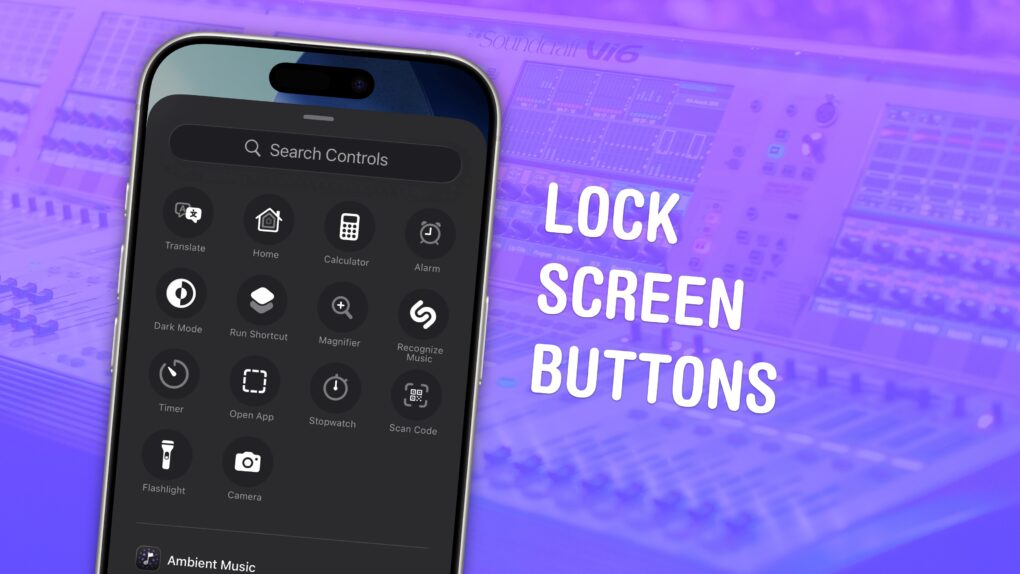
You can change out your iPhone Lock Screen buttons from the standard flashlight and camera icons to whatever you want. There’s a huge selection of buttons you can swap in their place. Just about any button you can put in Control Center is a button you can put on your iPhone’s Lock Screen.
Plus, you can assign different shortcut buttons on different Lock Screens, making them context-dependent (and tied to a Focus Mode if you like). Apple offers a standard selection, but your options will vary depending on what apps you’ve installed.
Here’s how to swap out the iPhone Lock Screen buttons to put whatever you want at your beck and call.
How to change the iPhone Lock Screen buttons
For most of the iPhone’s life, those two little Lock Screen icons — flashlight and camera — remained fixed, like so many other aspects of Apple’s tightly controlled universe. But with iOS 18, Apple cracked things wide open, turning the once-static shortcuts into fully customizable launchpads for everything from accessibility tools to automations.
It’s a tiny tweak with big implications. By allowing you to pick and choose these buttons, and letting you assign different controls for different Focus modes, Apple turned the Lock Screen into a personalized command center.
Take a second to make a couple of thoughtful changes now, and you will put your favorite tools front and center, right when you need them, without even needing to unlock your phone.
The flexibility of this setup gives you plenty of possibilities for how you might want to configure your iPhone Lock Screen buttons. For example:
- In your Sleep Focus, you could add an Alarm button.
- When traveling, you might appreciate shortcuts for Airplane Mode, Wallet or Translate.
- For my Driving Focus, I swapped in Apple Music and Podcasts.
- In your Personal Focus, you could add the iPhone’s Apple TV Remote or the Home app to control your smart devices.
- Or, if you frequently toggle on and off a couple of accessibility features, you could put any of those buttons front and center.
Basically, the sky’s the limit.
Table of contents: Change iPhone Lock Screen buttons
- Customize the Lock Screen to remove the button
- Choose from many controls you can add
- More iPhone customization features
Customize the Lock Screen to remove the button
Screenshot: D. Griffin Jones/Cult of Mac
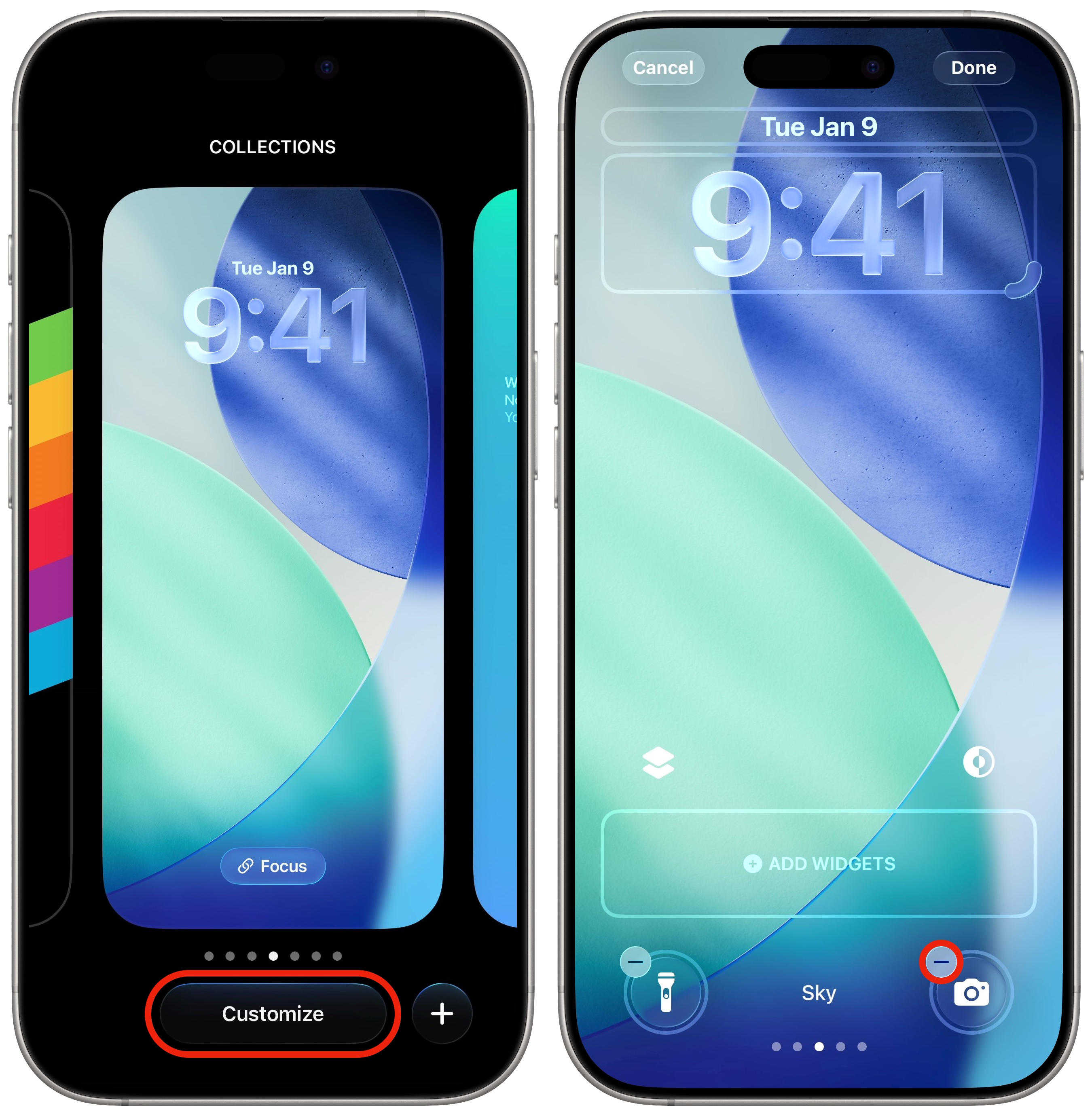
To change your Lock Screen buttons, you’ll first need to unlock your iPhone. Then, swipe back down from the center top of the screen to show the Lock Screen again. Tap and hold on a blank part of the screen, then tap Customize.
Choose from many controls you can add to your iPhone’s Lock Screen
Screenshot: D. Griffin Jones/Cult of Mac
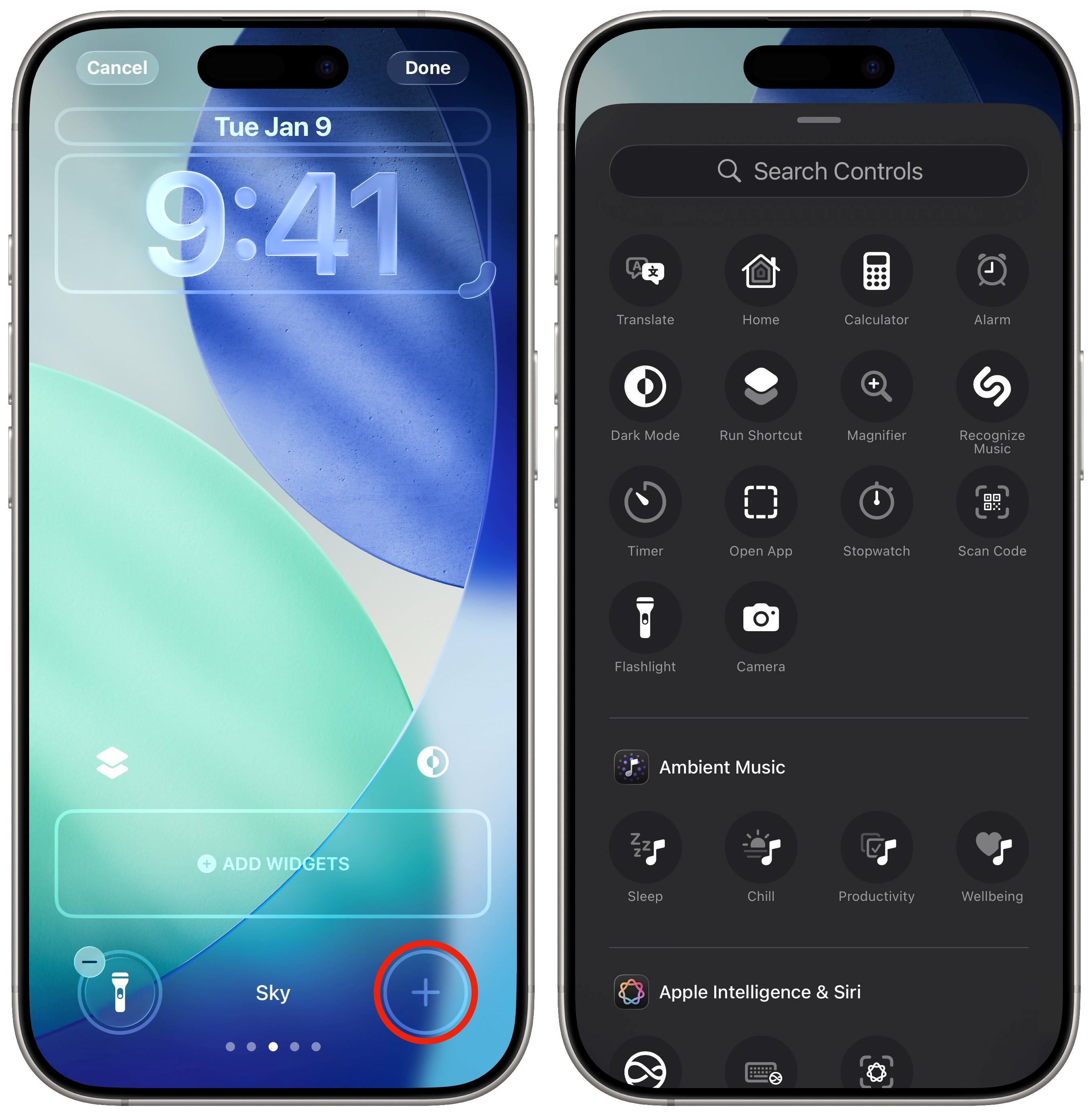
Next, tap the minus icon (-) above either the flashlight or camera button to remove it. Then, tap on the + sign that appears in the empty space where the button was to put something else there.
The panel of options will slide up from the bottom of your iPhone screen — scroll through the list or search to find one. If you want to use a shortcut to open an app, scroll down to the “Shortcuts” section and tap Open App, then choose one from any you already installed.
Tap Done in the upper right corner to finalize your changes.
Want to continue customizing? You can swipe over to another Lock Screen and customize its buttons, too. As mentioned, this proves especially powerful if you’ve got a custom Lock Screen set to a particular Focus.
Other ways to trigger your iPhone’s camera or flashlight
It’s important to note that you won’t lose the ability to quickly access your iPhone camera or flashlight, even if you remove one or both of those buttons from your Lock Screen.
For the camera, Apple gives you plenty of options. You can swipe left on the Lock Screen to take a quick photo or video. (Unless you disable that, too.) And if you own an iPhone 16 or later, you can use the Camera Control.
Finally, if your iPhone comes with an Action button, you could set it to open either the camera or the flashlight.
Then you can enjoy the benefits of customizing your Lock Screen buttons, without losing quick access to Apple’s standard options.
More iPhone customization features
- Customize your iPhone’s Lock Screen even more by adding widgets or changing up the aesthetics and styles. You can choose from loads of fonts, colors, styles and themes.
- All 25 iPhone Action and side button accessibility features, ranked. See what else your iPhone can do.
- Create Focus modes to customize notification settings for different times of day, like work, vacation, driving and personal time.
- 8 super-cool things you can do with iPhone Action button shortcuts.
- StandBy mode turns your phone into a smart display when it’s sitting on your desk, your nightstand or the kitchen counter.
We originally published this article on how to change your iPhone Lock Screen buttons on August 8, 2024. We updated it with the latest information on December 9, 2024, and April 10, 2026.

D. Griffin Jones is a writer, podcaster and video producer for Cult of Mac. Griffin has been a passionate computer enthusiast since 2002, when he got his first PC — but since getting a Mac in 2008, he hasn’t turned back. His skills in graphic and web design, along with video and podcast editing, are self-taught over 20+ years. Griffin has a bachelor’s degree in computer science and has written several (unpublished) apps for Mac and iOS. His collection of old computers is made up of 40+ desktops, laptops, PDAs and devices, dating back to the early ’80s. He brings all of these creative and technical skills, along with a deep knowledge of Apple history, into his work for Cult of Mac.

